The Best Digital Planner Tools for 2026
A roundup of the seven digital planner apps that actually earn a place on your home screen in 2026 — including the stylus-first tool I built when nothing else fit.

I went looking for a digital planner in 2026 and ended up writing the article I wish I had at the start.
Every "best of" list I read was either (a) a roundup of pretty templates inside one app's marketplace, or (b) a listicle that re-recommended the same four apps I'd already tried. Neither was useful when I was actually trying to pick a tool I was going to use every day for the next year.
So this is the list I wanted. Not a roundup of planners, but a roundup of tools — the apps, the systems, the small handful of programs that handle calendar, tasks, notes, and writing in ways that don't fight you. The point isn't to crown a winner. The point is to map the field so you can pick the one that matches how your brain works.
If you're shopping for a planner this month, this is the list. If you're already using one of these and feeling like it's not quite right, this is also the list.
What changed in 2026 (and why your old planner app feels off)
The biggest shift isn't a new app. It's that the role of a planner changed.
Three years ago, a "digital planner" was basically a PDF inside a note-taking app — a static layout you wrote on. A monthly spread, a weekly spread, maybe a habit tracker, and that was it. The app underneath didn't really matter. GoodNotes, Notability, Samsung Notes, even Apple's built-in Notes — they all imported the same PDF, and the experience was essentially the same.
That's not true anymore. The planner apps that have survived into 2026 are the ones that figured out something harder: a planner is no longer a place where you write down what already happened. It's a place where you think about what's about to happen, with the tool actively helping you decide.
Concretely, the best tools in 2026 do at least three of these things well:
Capture fast — typing, writing, voice, photo, link. The friction has to be near zero or you'll skip it.
Connect to your calendar — not as a static import, but live. A real-time link to today's actual meetings, not a snapshot from last week.
Get out of your way — no more bloat, no "AI features" bolted on. The tool should be invisible when you're using it.
If your current app can't do all three, you'll feel it as friction. You won't be able to name the friction. But you'll keep opening the app less, and switching to paper or a different app, and wondering why you can't stick with a system.
Here's the map of the tools that are doing this well right now.
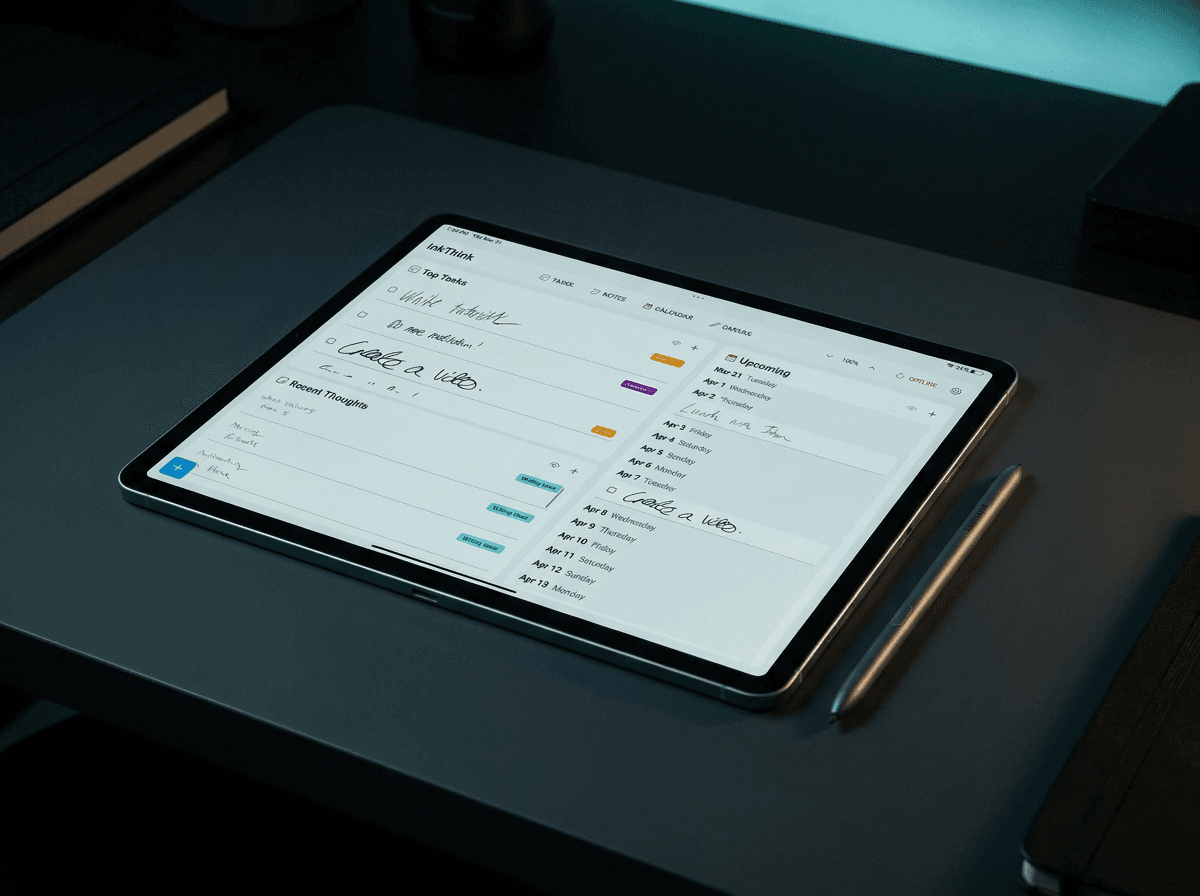
1. InkThink — the stylus-first planner for people who think by writing
Best for: Samsung Notes refugees, Boox users, anyone whose default planning mode is "draw it out first, then write it."
Price: Free during 7 Day Trial, paid option including one-time payment.
Where it wins: It's the only planner app on this list that was designed from scratch around the idea that writing is the thinking. Not typing. Writing.
I built InkThink because I was tired of the trade-off. The digital planner apps I used were either beautiful but rigid (PDF templates, no live data), or flexible but ugly (note apps pretending to be planners). The stylus-first apps I loved (Samsung Notes, Squid, the older NoteLife) all assumed I was on a Samsung device, or they were abandoned, or they didn't connect to my real calendar.
InkThink's bet is simple: most people planning with a stylus want the same four things — a fast capture surface, a way to convert handwriting to text when needed, a real calendar that updates, and the ability to find things later. It does all four without the marketplace, the bloat, or the AI features you didn't ask for.
The killer feature, for me, is the monthly view. Most digital planners give you a static grid of days and let you scribble in the boxes. InkThink's monthly view is a thinking surface — you can write across days, draw connections, and the underlying app knows it's a calendar, so it pulls in your real events and lets you tap into them. You can write "call mom" in the margin of Tuesday and have it route to your task list without you doing anything.
What it doesn't do yet: It doesn't connect to your existing calendar like Gmail or Outlook. It does work on desktop, mobile and tablet only. If your planning is 80% on a tablet with a stylus — and for a lot of people in 2026, it is — this is the one I'd try first.
2. NoteDex — the index-card planner for visual thinkers
Best for: People who like the freedom of a blank page but want their planner to remember things for them.
Price: Free 7 day trial -- one time payment option.
Where it wins: Free-form canvas + real database underneath.
NoteDex is the app I recommend when someone tells me "I liked the idea of Notion or OneNote but I want to write more visually ." It's a note-taking app that thinks it's a planner, with a card-based UI that works beautifully on tablets.
The key thing is the cards. Everything is a card — a task is a card, a note is a card, a calendar event is a card. You can move them around, link them, stack them, color them. It's the closest thing in 2026 to a digital Index Card Bullet Journal that doesn't punish you for being messy.
What it doesn't do yet: We don't do handwriting recognition. If you write messy (like me), you'll find yourself going back to re-type important notes.
3. GoodNotes — the original, still the most flexible
Best for: People who want a marketplace of templates and don't mind paying for them.
Price: $9.99/month or $79.99/year.
Where it wins: The template ecosystem, the search, the cross-platform reach.
GoodNotes is the app that defined the digital-planner category, and even after five years it's still the safest pick. The reason is the template ecosystem. Whatever planner layout you want — Sanrio-themed, business-focused, dotted-grid for bullet journalers, a 90-day challenge tracker — someone has made it, and the marketplace is well-curated.
What it doesn't do yet: It's still essentially a notebook. The "planner" features are templates you import, not built-in. If you want the calendar to do anything dynamic — pull in real events, let you tap an event to see the details — you're working around it, not with it.
4. Noteful — the focused handwriting app
Best for: People who want GoodNotes minus the price tag and don't need the marketplace.
Price: $3.99/month or $29.99/year.
Where it wins: Pricing, simplicity, the iPad-first experience.
Noteful is the underrated one. It's been around for years, and it does the handwriting-and-PDF thing very well. The killer feature is the price: at $30 a year, it's a third of GoodNotes.
What it doesn't do yet: No Android. No Windows. iPad only. If you're on a Boox or a Samsung tablet, this isn't for you.
5. Samsung Notes — the free option if you're on Samsung
Best for: Anyone with a Samsung tablet or a recent Galaxy phone.
Price: Free, included with your device.
Where it wins: It's already on your phone. The pen-to-shape conversion is excellent. The PDF import is built in.
I'm putting this on the list because a lot of people are paying for apps they don't need. If you have a Samsung tablet with an S Pen, Samsung Notes will do 80% of what GoodNotes does, for free, with handwriting recognition that is actually competitive.
What it doesn't do yet: It's a Samsung app on a Samsung device. If you ever leave the ecosystem, your notes come with you only as PDFs, not as a live database.
6. Notion — the typing-first planner for system builders
Best for: People who plan with their keyboard and like to design their own systems.
Price: Free for personal use, $10/month for the full tier.
Where it wins: Flexibility, databases, sharing, the template community.
Notion isn't a planner app, and I want to be clear about that. But it's the planner a huge number of people use anyway, because it's the most flexible database app on the market and you can build a planner inside it that does exactly what you want. But the interface is confusing and not easy to see all your notes.
What it doesn't do yet: It's not a tablet-first app. There is no handwriting experience. If you do your best thinking with a stylus, Notion is the wrong tool. If you do your best thinking with a keyboard, it's the right one.
7. Obsidian — the power-user planner for local-first note takers
Best for: People who want full control of their data and like to tinker.
Price: Free for personal use, $8/month for sync.
Where it wins: Local-first, plugin ecosystem, plain-text files you own forever.
Obsidian is the choice for people who read this list and thought "none of these respect my data." It's a markdown editor with a graph view, a plugin system, and the daily-note workflow that a lot of people use as their planner.
What it doesn't do yet: There's no mobile app that's actually good. The Android version works. The iPad version is fine. But this is fundamentally a laptop tool. And the plugin ecosystem means you'll spend more time configuring your planner than using it, if you're not careful. You can do diagrams and handwriting but only via plug-ins
How to pick the right one (without trying all seven)
Here's a three-question shortcut. Answer these and you'll skip 80% of the trial-and-error:
Where do you do most of your planning?
If the answer is "iPad with a stylus" — start with InkThink or GoodNotes. If "laptop with a keyboard" — start with Notion. If "phone on the go" — start with Samsung Notes (Samsung) or the iPad app for any of the others (everyone else).
How do you want to think?
Writing-first: InkThink, GoodNotes, Noteful, Samsung Notes.
Typing-first: Notion, Obsidian.
Cards-first: NoteDex.
How much do you want to set up vs. just use?
Zero setup: Samsung Notes (if you have a Samsung device).
Light setup: InkThink, Noteful, GoodNotes.
Medium setup: NoteDex.
Heavy setup: Notion, Obsidian. You'll love it or it'll eat your weekend. There is no in-between.
If you can answer those three questions, you'll land on a tool that fits. The rest is just trying it for a week and seeing if it sticks.
The real test: do you still open it in week three?
Here's what nobody tells you about picking a planner app: the first week is always great. Everything feels new. The second week is the test. The third week is the answer.
If you're still opening it in week three, it's the right tool. If you're back to paper, or to a different app, or to nothing — the tool isn't the problem, the fit is. Go back to the three questions and try a different one.
I've cycled through almost every app on this list in the last three years. The one I kept coming back to was always the one that matched how my brain works, not the one with the most features or the best reviews. Features don't matter if you don't open the app.
— Prem, Creator of InkThink
FAQ
Do I need an iPad to use a digital planner in 2026?
No, but it helps. Most of the best apps now have Android or Windows versions. The stylus experience is still best on iPad with Apple Pencil, but a Boox Tab Ultra with a Lamy stylus is a serious competitor, and Samsung's S Pen is good enough that you don't need to think about it.
Is a digital planner better than paper?
It depends what you mean by better. Digital wins for search, for syncing across devices, for not losing the notebook, and for connecting to your real calendar. Paper wins for memory retention (writing by hand is genuinely better for your brain), for distraction-free thinking, and for the feeling of having a physical object you can flip through. If you care about memory, hybrid is the answer — paper for thinking, digital for storing.
What's the cheapest good digital planner?
If you're on Samsung, Samsung Notes is free and good. If you're on iPad, Noteful at $30/year is the cheapest paid option that's actually good. Avoid the $5 lifetime-planner apps in the App Store — they're abandoned within a year.
Can I import my old planner from another app?
Most apps support PDF import, which is the universal format. Your old planner will come in as a PDF, not a live database, but you'll be able to read it and search it. For a true database migration, you're usually out of luck — there's no standard format.
Do I need a stylus, or can I use my finger?
You can use your finger, but you'll hate it within a week. A basic capacitive stylus is fine for tapping. For writing, you need an active stylus — Apple Pencil, S Pen, Lamy AL-star, or any of the Wacom-compatible pens. The difference in writing feel is night and day.
What about the AI features in modern planner apps?
Most of them are noise right now. The good ones are: handwriting-to-text, search, and auto-linking related notes. The bad ones are: chat assistants, "AI insights" on your calendar, and auto-summarization of your notes. If an app is leading with AI as a feature, be skeptical about the core experience.
How do I actually stick with a digital planner once I pick one?
Set one specific time of day to use it — morning, with coffee, is the most common. Don't try to migrate everything at once. Start with the calendar. Add tasks as you go. Let the system grow into the role. If you set it up perfectly on day one and then don't use it for a week, you'll never go back. Use it messy first.
Should I pay for a planner app?
If you're going to use it every day, yes. Free apps get abandoned. A $30/year app is cheap if you actually use it. The exception is Samsung Notes and the iPad Notes app, which are good enough as the default and are free.