Best App for S Pen: Why Samsung Users Are Ditching Typing Forever
If you own a Samsung Galaxy Tab or a Galaxy phone with an S Pen, you already know the feeling. You pull out that stylus, open an app, and… it's designed for fingers. Or worse — it's designed for a keyboard. The whole point of the S Pen is that you get to write. So why are almost all productivity apps still built around typing?
If you own a Samsung Galaxy Tab or a Galaxy phone with an S Pen, you already know the feeling. You pull out that stylus, open an app, and… it's designed for fingers. Or worse — it's designed for a keyboard. The whole point of the S Pen is that you get to write. So why are almost all productivity apps still built around typing?
That's the question that led to InkThink — and it's the question this article is going to answer.
We'll cover what makes a great S Pen productivity app, what's currently out there, why most of them fall short for stylus-first users, and why InkThink is the app Samsung tablet owners have been waiting for. We'll also touch on users rocking other Android stylus tablets — Lenovo, Oppo, and e-ink devices like Boox — because the S Pen is the most famous, but it's far from the only great Android stylus out there.
What Makes a Great S Pen App?
Not every app that "supports" the S Pen actually respects it. There's a big difference between an app that tolerates stylus input and one that's truly built for it.
Here's what separates a genuinely great S Pen app from a mediocre one:
1. Pressure sensitivity and palm rejection The S Pen has 4,096 levels of pressure sensitivity. A great app uses that to make your handwriting feel natural — thin strokes when you write lightly, bolder lines when you press. And palm rejection means you can rest your hand on the screen without creating chaos.
2. Low latency Nothing kills the handwriting experience faster than lag. The best S Pen apps feel like pen on paper — immediate, responsive, with zero perceptible delay.
3. Ink that does something Here's where things get interesting. Most apps treat your handwriting as a static image — a doodle on a digital page. The best S Pen apps treat your ink as data — something that can be moved, edited, reorganized, and made to work for you across your whole day.
4. A workflow designed around writing, not typing The ideal S Pen productivity app doesn't just add a drawing layer to an otherwise typing-based interface. It starts from the assumption that you're going to write everything — and builds the whole experience around that.
The Problem with Most "S Pen Compatible" Apps
Search for S Pen apps and you'll find a lot of note-taking apps. GoodNotes, Notability, OneNote, Squid — they're all reasonably good at letting you write on a page. But they're built around the metaphor of a notebook. You open a page, you write, you close it. The page is static. Your handwriting sits there, inert.
That works fine if your goal is to annotate a PDF or sketch ideas. But if you want to actually run your day with your stylus — tasks, calendar, planning, daily to-dos — static notebook apps leave you stranded. You end up writing your tasks in one app, keeping your calendar in another, switching between them all day. The S Pen becomes a tool for capture, not for living.
And then there's the subscription problem. Day One, PlanWiz, Zinnia — the productivity apps that have tried to bridge the gap are almost universally subscription-based. You're paying $5–$10 per month forever for the privilege of writing on your tablet. For a lot of stylus users, that feels like the wrong deal.
InkThink: Built from the Ground Up for Android Stylus Users
InkThink isn't a note-taking app with a calendar bolted on. It's a stylus-first productivity suite — built specifically for the way people actually use pen-enabled Android tablets.
At the heart of InkThink is Intelligent Ink technology. Here's what that means in practice:
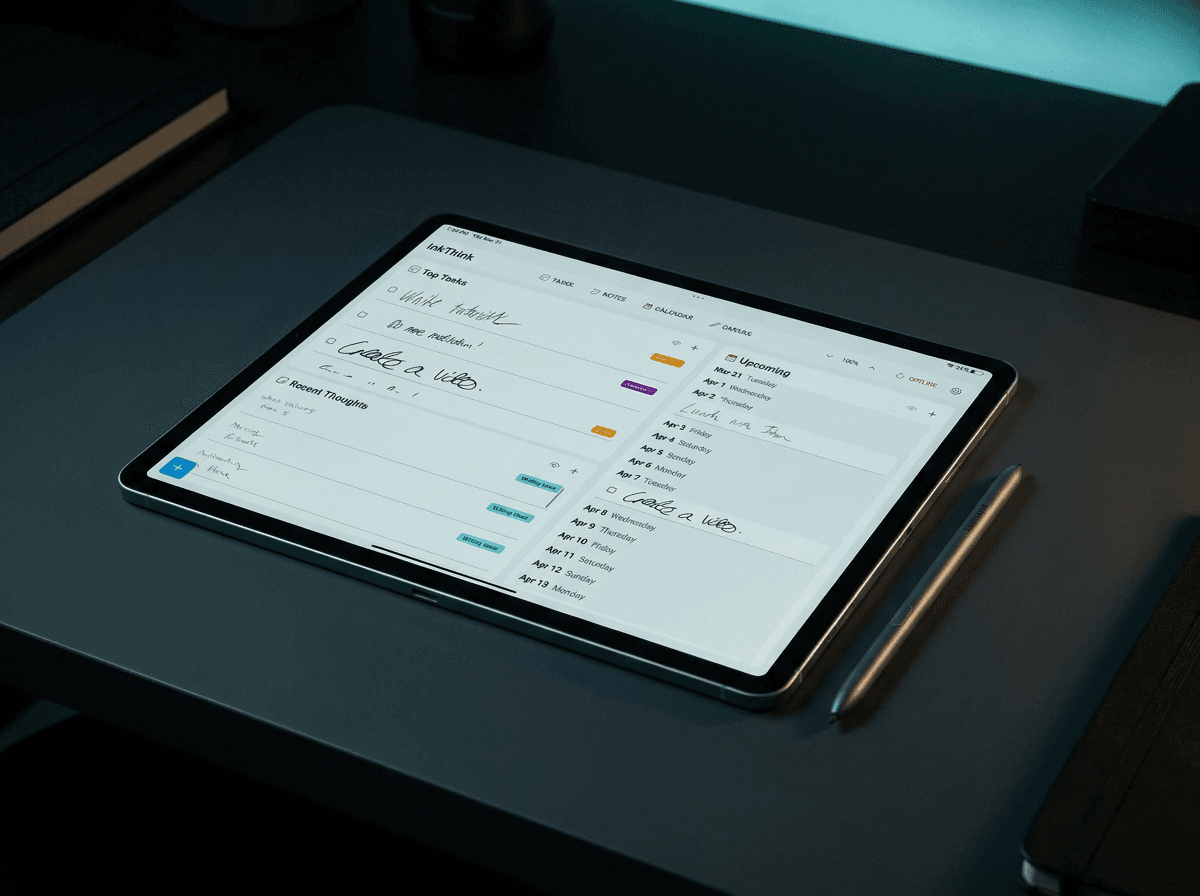
When you write a task or a calendar entry in InkThink, it doesn't just save a picture of your handwriting. It stores your ink as a living, modular data block — something with metadata, awareness of dates, and the ability to move and reflow dynamically across views.
Write a task on Monday and it automatically appears in your Week view. Switch to Month view and your handwritten entries are still there, intelligently scaled and arranged. Reschedule something by dragging it — your handwriting moves with it. No retyping. No redrawing. Your ink flows with your day.
That's a quantum leap beyond drawing on a static PDF. And it's something no other Android stylus app currently offers.
What You Get with InkThink
Handwritten To-Do Lists — write your tasks naturally, check them off, reorganize without rewriting
Dynamic Handwritten Calendar — Day, Week, and Month views with your ink entries reflowing across all of them
Notes — freeform handwritten notes that live alongside your tasks and calendar
Canvas — a freeform workspace for quick sketches, visual thinking, and mind mapping
Offline-First Design — everything works without a connection; your ink is yours
One-Time Purchase offer — no subscription, ever. Pay once, own it.
S Pen Specifically: Why Samsung Users Feel Right at Home
Samsung's S Pen is the gold standard of Android stylus hardware. The ultra-low latency, the pressure sensitivity, the precision — it's genuinely excellent hardware. InkThink is designed to make the most of every one of those features.
The low-latency ink engine means your strokes appear on screen as fast as the S Pen can produce them. The pressure response maps naturally to varying line weights. And because InkThink is stylus-first by design, palm rejection is baked into the core experience — you can lay your hand on the screen and write comfortably without the app losing the plot.
Whether you're on a Samsung Galaxy Tab S10, Tab S9, Tab S8, Tab S7, or using your Galaxy phone's S Pen with a foldable or the classic Note-era devices — InkThink is designed to feel like home.
The S Pen even clicks open the Samsung Air Actions menu, which you can configure to launch InkThink directly. Pull it out, tap, and you're writing. Zero friction.
Not Just S Pen: Other Android Stylus Tablets That Work Beautifully with InkThink
The S Pen is the most famous Android stylus — but it's not the only one. A growing number of Android tablet users are discovering that InkThink is exactly the app they've been missing.
Lenovo Tab with Precision Pen
Lenovo's Precision Pen 2 and 3, included with the Lenovo Tab P12 Pro, Tab P11 Pro Gen 2, and Tab Extreme, offer 4,096 levels of pressure sensitivity and excellent palm rejection. Lenovo tablet owners who've been piecing together note apps and calendar apps will find InkThink's unified, stylus-first approach a revelation. Everything in one place. All handwritten. All connected.
Oppo Pad with Stylo Pen
Oppo's Pad 2 and Air tablets come with the O Pencil / Stylo stylus — capable hardware that most productivity apps ignore entirely. InkThink works natively with Oppo's stylus input, giving those users the handwritten productivity experience they deserve.
E-Ink Devices: Boox, Remarkable, and Android-Based Readers
This is a special category, and one we're particularly excited about. Boox e-ink tablets — the Note Air series, Tab Ultra, Tab X — run Android and support stylus input with a paper-like writing feel that's hard to replicate on glass. Early InkThink users on Boox devices showed some of the highest engagement of any device category.
E-ink screens are slower to refresh than OLED or LCD — but for task lists, daily planning, and calendar management, that's completely fine. Your handwritten InkThink entries sit beautifully on an e-ink display, readable in bright sunlight, with zero eye strain during long work sessions. If you're an e-ink tablet user looking for a productivity app that actually works with your stylus, InkThink is one of the very few apps designed with you in mind.
How InkThink Compares to Other S Pen and Android Stylus Apps
Let's be direct about the alternatives:
App | Platform | Model | S Pen / Android Stylus | Handwriting-First? |
InkThink | Android, iOS, Windows | One-time purchase | Full native support | Yes — built around it |
GoodNotes | iPad / iOS (limited Android) | Subscription | Partial | No — notebook-first |
Squid | Android / iOS | Freemium | Good | No — annotation-first |
Pencil Planner | iPad only | Freemium | iPad Pencil only | Partial |
PlanWiz | Multi-platform | Subscription | Typed input mainly | No |
OneNote | Multi-platform | Free (Microsoft 365) | Decent | No — typing-first |
Noteshelf | Android / iOS | One-time | Good | No — notebook-first |
The pattern is clear: apps that support the S Pen well are mostly notebook apps, not productivity/planning apps. And planning apps are almost entirely typed-input, subscription-based tools that treat stylus as an afterthought.
InkThink is the only app in this space that combines:
True stylus-first design (not an add-on)
Task + calendar + notes + canvas in one
Handwritten ink that is dynamic, not static
Full Android support (including S Pen, Lenovo Pen, Oppo Pen, Boox)
One-time purchase, no subscription
Real Workflows: How S Pen Users Use InkThink Every Day
Here's what a typical InkThink day looks like for a Samsung tablet user:
Morning: Open InkThink to the Day view. Write today's tasks by hand. Glance at your handwritten calendar entries for the day — meetings, deadlines, reminders, all written in your own handwriting from when you planned the week.
During the day: Keep InkThink open beside your main computer or on your desk. When a new task lands or you think of something, reach for the S Pen and jot it down. It takes three seconds. No typing, no unlocking, no friction, no navigating menus.
End of day: Anything undone carries forward automatically. Switch to Week view and see the full picture — still in your handwriting.
Weekend planning: Switch to Month view. Your ink entries are still there — not as a low-res image blob, but as readable, individual handwritten notes, intelligently laid out for the space available.
This is the zero-friction handwritten planning workflow that pen-and-paper lovers have been trying to recreate digitally for years. InkThink is the first app that actually delivers it.
Getting Started with InkThink on Your S Pen Device
InkThink is available for Android, iOS and Windows.
When you first open InkThink on your Samsung tablet, the app recognizes your S Pen input immediately. No settings to configure. No stylus mode to enable. Just pick up your pen and start writing.
The onboarding flow walks you through creating your first handwritten task and seeing how it flows from Day view to Week view — that "aha moment" of watching your handwriting move intelligently across the calendar tends to be when people get it.
Try InkThink free for 7 days. During our launch period, you'll also get a free upgrade to InkThink Pro subscription so you only pay once — giving you access to all features while you put the app through its paces with your S Pen.
The Bottom Line
If you own a Samsung Galaxy Tab with an S Pen — or any Android tablet with a stylus — you've probably been making compromises. Either using a great notebook app that doesn't do planning, or a planning app that ignores your stylus entirely, or paying a monthly subscription for something that barely earns it.
InkThink is built for you. Stylus-first. Handwriting-first. One-time purchase. And genuinely different — not because we say so, but because Intelligent Ink is a technology that doesn't exist anywhere else.
Your S Pen deserves a productivity app that takes it seriously. That app is InkThink.
InkThink is developed by Sundaram Applied Technologies Inc., based in Los Angeles. Also check out NoteDex — our companion app for deep note-taking, index cards, and knowledge management. Together, they form a complete ink-first productivity stack.