How to Draw a Calendar Digitally (And Why Your Stylus Deserves Better)
Learn how to draw a calendar digitally with your stylus, step by step. Then discover why InkThink's Intelligent Ink technology is the smarter way to handwrite your planner in 2026.
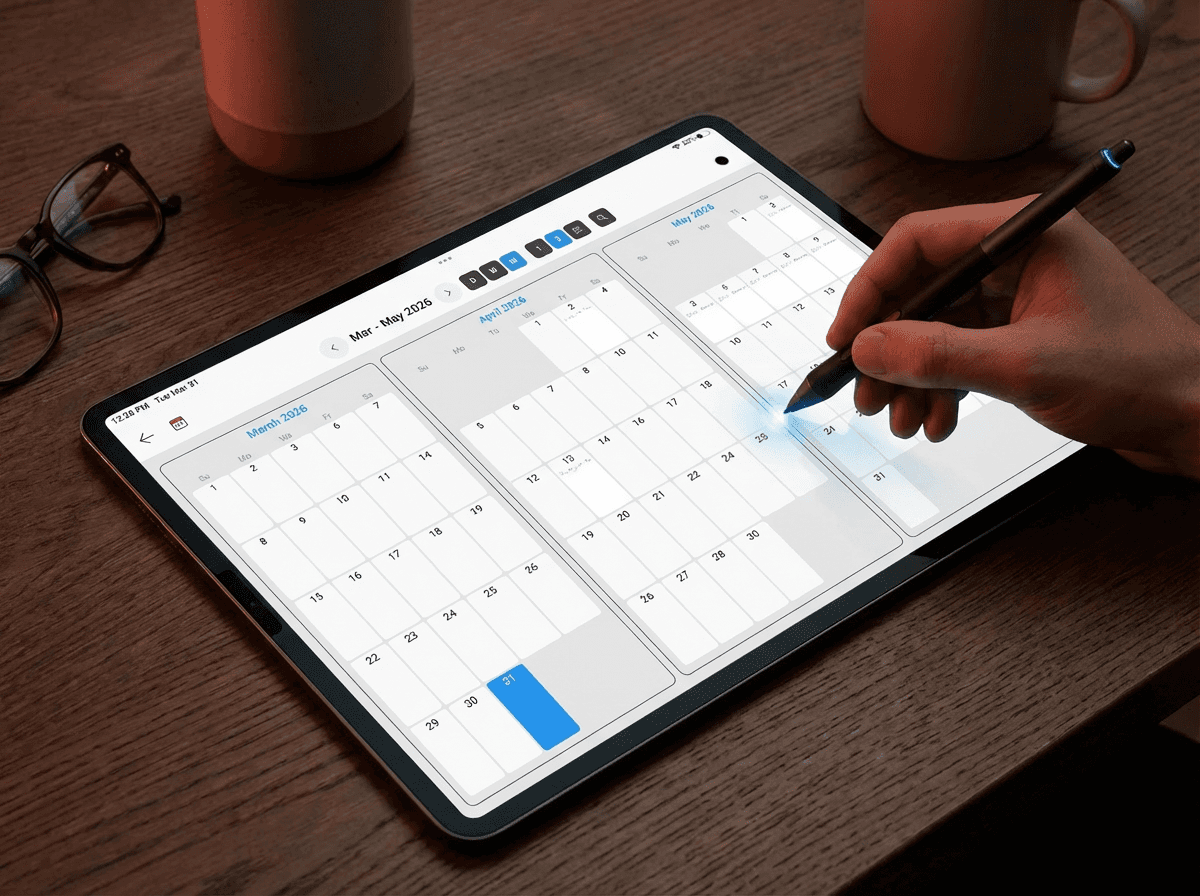
There's something deeply satisfying about drawing your own calendar by hand. The grid lines, the neat little boxes, your handwriting filling in dates and tasks — it feels intentional in a way that clicking through a digital app never quite does. If you've ever searched for how to draw a calendar digitally, you already know what you're after: the analog experience, but on your tablet.
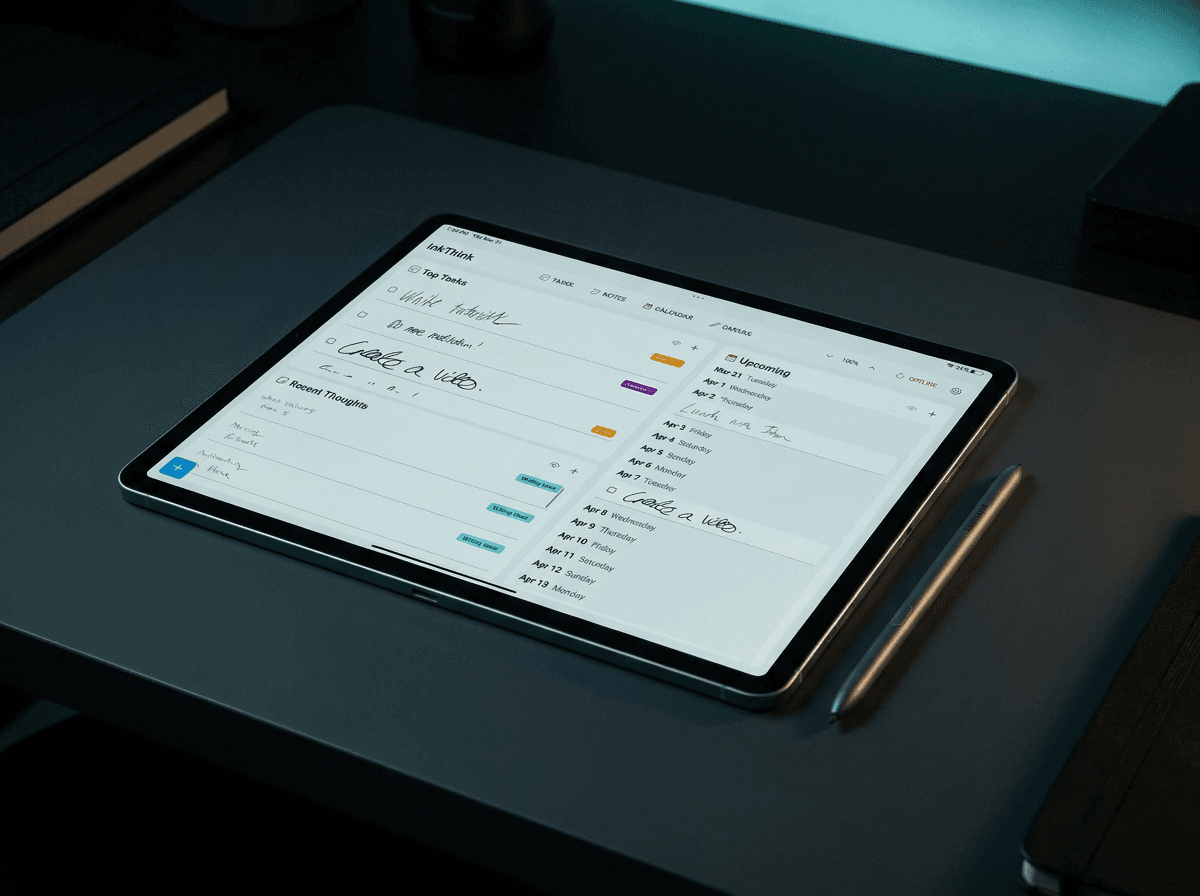
InkThink is a stylus-first digital planner app for Android, Windows, and iOS that lets you write tasks, calendar entries, and diary notes by hand — without converting your handwriting to text.
You're not alone. Millions of people are doing exactly this — pulling up blank templates, annotating PDFs, sketching grids in note-taking apps — just to get that handwritten planning feel. And it works. Until it doesn't.
Let's walk through how to draw a calendar digitally the right way. Then we'll talk about why your stylus deserves something better than a workaround.
How to Draw a Calendar Digitally: A Step-by-Step Guide
Whether you're on a Samsung tablet, Microsoft Surface, or a Boox e-ink device, here's how most people build a handwritten digital calendar from scratch.
Step 1: Choose your canvas app.
Open a note-taking app that supports stylus input — GoodNotes, Noteshelf, or even a basic drawing app. Create a blank page in landscape or portrait orientation, depending on your preference.
Step 2: Draw your grid.
Using a ruler tool (if available) or freehand, draw a 7-column grid for the days of the week. Add rows for each week of the month — typically 5 to 6 rows. Label the columns: Sunday through Saturday, or Monday through Sunday if you prefer.
Step 3: Add your dates.
Write in the dates for the month, starting on the correct day of the week. Use a printable calendar template as a reference if you need to double-check the layout.
Step 4: Fill in your entries.
Write tasks, appointments, and reminders directly into each cell. This is where the magic happens — your handwriting, your style, your rhythm.
Step 5: Decorate and personalize.
Many bullet journal app enthusiasts add headers, color coding, and decorative elements. Go as minimal or as elaborate as you like.
This process works. It genuinely does. But here's where things start to break down.
The Problem With Static Drawn Calendars
You've spent 20 minutes drawing your calendar. It looks great. Then Tuesday's meeting gets moved to Thursday. A task you planned for the 5th needs to shift to the 12th. And suddenly your beautiful handwritten calendar is a mess of crossed-out entries and cramped rewrites.
Static drawn calendars — whether on paper or inside a note-taking app — have one fundamental flaw: your ink is frozen in place. It can't move. It can't reflow. It doesn't think with you.
This is the gap that every pen calendar app, every digital planner stylus tool, and every ink calendar app on the market has failed to close. They give you a surface to write on. They don't give you a planner that responds to how you actually work.
Meet InkThink: The Pen Planner That Actually Thinks
InkThink was built to solve exactly this problem. It's not a notebook app with a calendar bolted on. It's a stylus-first productivity planner — built from the ground up for people who think in ink.
At the heart of InkThink is Intelligent Ink technology. When you write a task or calendar entry by hand, InkThink doesn't just capture it as a static image. It stores your ink as a modular, living data block — one that can move, reflow, and reorganize across your Day, Week, and Month views without ever converting your handwriting to text.
Write a task on Monday. Move it to Wednesday. It flows there — in your handwriting, exactly as you wrote it. No retyping. No redrawing. Zero friction.
What Makes InkThink Different
Intelligent Ink that reflows across views.
Your handwritten entries appear dynamically across Day, Week, and Month calendar views. No other handwriting planner app does this. Your ink isn't stuck — it flows.
A planner, not a notebook.
Every competitor defaults to the notebook metaphor — blank pages, free-form canvases, static PDFs. InkThink leads with planning. Tasks, calendar items, to-do lists, and a canvas all live in one workspace, organized around how you actually plan your life.
Built for your device — not adapted for it.
GoodNotes and Noteshelf were built for iPad and ported everywhere else. InkThink is built natively for Android, Windows, iOS, and e-ink devices — including Samsung tablets with S Pen, Microsoft Surface Pro, and Boox e-readers.
Offline-first, always.
No cloud dependency. No waiting for sync. InkThink works wherever you are, whenever you need it — your ink, your device, your data.
One-time purchase.
No subscription. You buy InkThink once and own it forever — a rare thing in a market full of monthly fees.
Your Stylus Deserves a Real Planner
Drawing a calendar digitally by hand is a great instinct. It means you value the tactile, intentional quality of handwriting. You want planning to feel human, not mechanical.
InkThink honors that instinct — and takes it further. You get the handwritten feel you love, plus the flexibility of a digital planner that actually responds when life changes. Ink that moves with you. A planner that thinks with you.
If you also need deep note-taking, knowledge management, or index cards alongside your planning, check out NoteDex — InkThink's companion app. Together they form a complete ink-first stack: NoteDex thinks, InkThink acts.
Ready to experience it? Download InkThink and start your free trial today. Available on Android, Windows, iOS, and e-ink devices.
Your ink deserves to live — not just sit there.
Frequently Asked Questions
What does it mean to draw a calendar digitally?
Drawing a calendar digitally means using a stylus or pen on a tablet to handwrite a calendar grid, dates, and entries — rather than typing them. It combines the feel of analog planning with the convenience of a digital device.
What is the best app for drawing a calendar digitally?
InkThink is the best app for drawing a calendar digitally with a stylus. Unlike static note-taking apps, InkThink stores your handwritten entries as living ink data that reflows dynamically across Day, Week, and Month views — no retyping or redrawing needed.
What is InkThink?
InkThink is a stylus-first digital planner app for Android, Windows, and iOS that lets users write tasks, calendar entries, and diary notes by hand — without converting handwriting to text. It uses Intelligent Ink technology to make handwritten entries dynamic and movable.
Can I draw a calendar digitally on a Samsung Galaxy Tab?
Yes. InkThink is built natively for Samsung Galaxy Tab with S Pen and is one of the only true stylus-first planners with full Android support.
Does InkThink convert my handwriting to text?
No. InkThink stores your raw ink exactly as you wrote it. Your handwritten tasks and calendar entries move and reflow as ink — your natural handwriting style is always preserved.
What is the difference between InkThink and GoodNotes for calendar planning?
GoodNotes lets you write on static PDF templates — your ink is frozen in place. InkThink treats your handwritten entries as living data that can move and reflow across calendar views without retyping or redrawing.
Does InkThink require a subscription?
No. InkThink is a one-time purchase — no monthly or annual fees.
What devices does InkThink support?
InkThink supports Android (including Samsung Galaxy Tab with S Pen), Windows (including Microsoft Surface), iOS (including iPad with Apple Pencil), and e-ink devices like Boox.