How to Plan a Project (Without Burning Out Your Open Loops)
Six projects open in your head, zero of them advancing. Why your brain can't let unfinished projects go, and the seven-principle system that closes the loops.

I had six projects open last Tuesday and I could feel every one of them. Not because I was working on six projects — I was actively working on maybe one and a half — but because each one was sitting in my head like a tab I’d never closed. The dentist appointment tab. The launch tab. The thing-a-friend-asked-me-for tab. Six tabs, open, none of them advancing. I was exhausted by 11am.
If your brain does this — if even your resting brain is running project backgound processes that drain it — this post is for you. I’m going to walk through why we’re wired to suffer under open projects, and then the specific system I use to plan projects without lighting my brain on fire. Most of it I learned from a YouTube creator who rebuilt her own planner template from scratch after years of trying every app, and I’ve adapted her seven principles for stylus tablets and digital notebooks. The framework works on a reMarkable, a Samsung tablet, a Boox, an iPad, or a paper notebook — nothing here is device-locked.
Why projects feel heavier than they should
There’s a name for why you can’t stop thinking about a half-done project. Back in the 1920s, a psychologist named Maria Ovsyankina ran a simple experiment: she gave people manual tasks, interrupted them partway through, and asked them to switch. Most people wanted to go back to the first task and finish it, even when they had the option to drop it. That’s now called the Ovsyankina effect, and it sits inside the broader Zeigarnik effect — we remember and ruminate on incomplete things more than complete ones.
A project, by definition, can’t be finished in one sitting. That’s the whole point of calling it a project instead of a task. But your brain doesn’t know that — it just sees an open loop, and it loops. Six open loops means your brain is doing six background jobs, all the time, whether you’re at the desk or in the shower. No wonder you’re tired.
A task is one and done — book the dentist, send the email, ship the patch. Your brain closes the loop and moves on. A project refuses closure for weeks. The fix isn’t “try harder to forget about it” — the fix is giving the loop a visible path to closing. Studies have shown that writing down where, when, and how you’ll do a thing lowers work-related stress measurably — you’re not waiting for the brain to let it go, you’re showing it the exit.
One more piece of mental reframe made projects manageable for me, and it came from Oliver Burkeman’s 4,000 Weeks: finitude. We have finite time, finite energy, and once we genuinely accept we cannot do everything, we can stop pretending we’re going to. The projects I commit to get my real attention. The rest go to a parking lot. That one decision removed about 80% of my guilt.
The structure: one planner with six sections
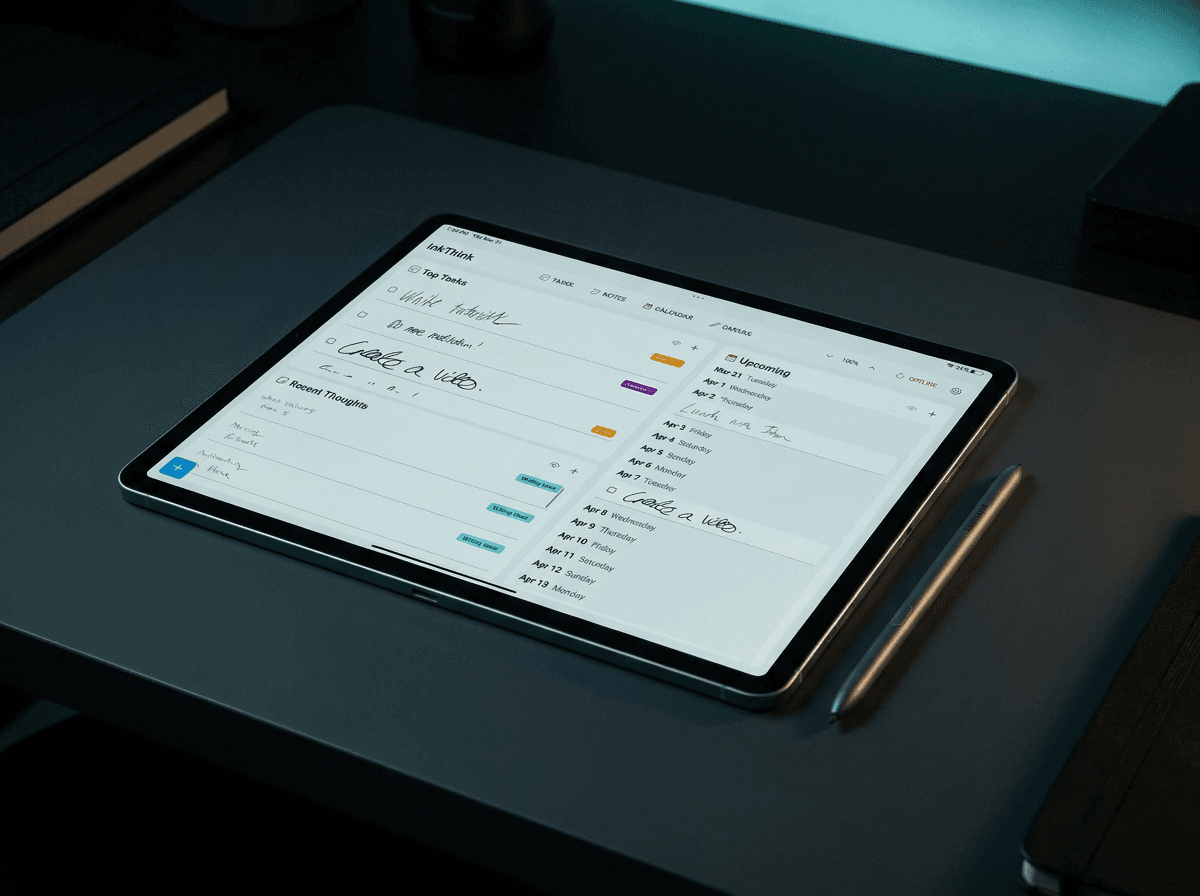
Before getting into the principles, the system itself. The original template I adapted from was built around a reMarkable Move tablet, but I’ve rebuilt it for whatever’s in your hand. You need six pages or sections, and they each do exactly one job:
Index. Every project you’ve actually committed to. One line per project, no essays. The rule is: if it’s not on this page, it’s not real yet.
Quick Note. Every random idea you have, captured immediately. Product ideas, half-sentences, links people sent you, “we should redo the pricing page” — everything goes here, no editing, no judgment.
Kanban board. Four columns: Backlog, Current, Waiting, Done. The Kanban is not a project tracker — it’s an attention tracker. It tells you where your focus belongs.
Project dashboard. One per project. A grid space for quick notes, blank/lined/grid templates for brainstorming, a milestones section where each milestone gets its own dedicated space.
Monthly calendar. A normal grid calendar. I think in calendars, not in lists — when I picture a stretch of time, I see a grid, not a sequence. The calendar exists to plan deadlines and stretches of work visually.
To-do list. Tagged to the home page so it’s the first thing you see. This is the “what am I doing next, across every project” page — it removes the “where was I” decision fatigue that kills momentum.
Two of these pages do most of the heavy lifting: the Quick Note and the Kanban. If you only adopt two things, adopt these.
The seven principles (paraphrased for stylus workflows)
Now the principles. These are mine, but they’re borrowed from a creator whose whole project-planning system I respect — her template was the jumping-off point. I’ve adapted each one to how I actually work with a stylus, where closing loops visually (by writing them closed) feels different from checking them off a screen.
1. Budget and track your time for each project step
Before you start a milestone, take a guess: how many 25-minute Pomodoros will this take? Write the guess next to the step. Then actually track the real time — Toggl, a timer app, or just a pen mark. The point isn’t precision. The point is to stop wildly over-committing.
Most of us are wildly, wildly optimistic about how long things take — a 20-minute task turns into 3 hours, every time. After a few rounds of guessing-and-tracking, you start noticing your own patterns. Scripting always takes me at least four Pomodoros. Editing an essay takes two. Sending a single “hi let’s chat” email takes zero. The data is depressing but liberating — you stop promising yourself “this will be quick” and you plan accordingly.
In my planner I draw a circle for the guess and fill it in as I go. Yellow for the guess, black for the actual. The yellow-over-black pattern is a visual record of how bad my optimism was, and it makes me a better planner next time.
2. Capture every idea the second it arrives
The second an idea shows up — no matter how good it seems in the moment — it goes to the Quick Note. Captured is not the same as worked-on. The Quick Note is a parking lot, not a project list. Most ideas stay there. A few get promoted to the Index. That’s the system.
The benefit isn’t storage; it’s discharge. When you write down an idea, your brain can finally let it go. It’s no longer an open loop running in the background; it’s a line in a file you control. “Captured” means your brain stops holding it.
On a tablet, this is even more visceral than on a keyboard — you can handwrite a thought in two seconds on the Quick Note page. The pen forces brevity. The act of writing physically discharges the loop.
3. Cap your active projects at one or two
I used to think more projects in flight meant more output. The opposite is true. Three or more active projects means none of them get your real focus — you’re scattered, switching costs compound, and nothing ever closes. So you can’t be calm holding five open loops at once, even when you know what they are.
The Kanban’s Current column is the cap. One or two projects, max. Everything else is in Backlog or Waiting. When the Current column empties, you promote something from Backlog. Close the loops before you open new ones.
I get more satisfaction and ship more meaningful work doing it this way. Energy channeled to fewer things. Each finished loop gives you a tiny dopamine reset that makes the next loop easier.
4. One source of truth for everything project-related
All your project stuff lives in one place. Notion + Apple Notes + a folder of PDFs + the back of an envelope + your text messages with your collaborator — that’s not a system, that’s a mess. The mess is the source of the stress.
For me, the planner app on my tablet is the single source of truth. All my ideas, all my scripts, all my todos. The benefit isn’t organization — it’s context switching. When I open the planner, my brain shifts from “leisure mode” or “scrolling mode” into “project mode.” The tool is the cue. The tool is the boundary.
If you don’t have a tablet or paper notebook you trust, just pick one digital place and commit: a Notion workspace, an Apple Notes folder, a folder on your drive. The choice doesn’t matter. Picking one and sticking with it matters enormously.
5. Break the project down on purpose into smaller loops
Here’s the trick that changes projects from nightmare to manageable: each milestone is its own loop. A 6-week project is one giant open loop, anxiety-inducing, hard to start, easy to avoid. A 6-week project broken into ten 3-day milestones is ten small loops — each one closable in a few sessions.
Every step you finish gives a tiny sense of completion. That’s what keeps you coming back to the project instead of quietly avoiding it. The Ovsyankina effect is working for you now — each closed milestone scratches the closure-itch.
In the project dashboard, this looks like a milestones section where each step gets its own little subsection. “Outline the video.” “Script section one.” “Record intro.” “Edit section one.” Ten small loops instead of one big one.
6. Embrace constraints — they’re what gets things finished
Self-imposed constraints feel restrictive when you’re used to thinking freedom = creativity. They’re actually what gets projects finished. Concrete constraints that work:
A deadline, even a fake one. Honor the deadline even if you feel like there’s more to polish.
A maximum number of work hours. Cap the time investment on the project up front, so it can’t grow without bound.
Working with the energy you actually have that day, not the energy you wish you had.
“Good enough” as a finish line. Perfectionism is a loop that never closes.
This is Parkinson’s law in action: work expands to fill whatever time you give it. A one-week project given a month will mysteriously take the month. A one-week project given a week will actually get done — ratchet-tight, yes, but done. The constraint isn’t the enemy of the project. It’s what gets the thing to ship.
7. Leave crumbs to your future self — always know the next step
The last principle comes from Hemingway (and from Cal Newport): always know your next concrete step before you stop working on the project.
For Hemingway, it was stopping mid-sentence — he’d leave himself in the middle of a sentence so the next session started without friction. For a digital project, it’s a one-line To-do entry: “Write line three of paragraph four on page 264 of the reading journal.” So concrete that there’s no room for second-guessing.
The point is to remove the “where was I” moment entirely. When you sit down tomorrow, the To-do list tells you exactly what you’re doing first. You don’t have to decide. You don’t have to motivate yourself past the doorway. You just pick up the trail of crumbs.
How this maps to a stylus tablet
A lot of project-planning advice is built around keyboards — the Quick Note becomes “type it up,” the Kanban becomes a Trello column, the to-do list becomes a markdown checklist. None of that’s wrong, but on a stylus tablet a couple of things change:
The pen is slower than typing, but that’s the point. You capture fewer words, but the words you do capture are the ones you meant. The overhead of hand-writing forces a sort of triage: you don’t capture junk. The Quick Note stays clean.
You can sketch the project. Boxes, arrows, mind-maps, diagrams. Most planning is linear; sketching lets you see the non-linear connections. The blank-page mode of the project dashboard is mostly for this.
The act of writing-closed makes the loop close. When you finish a milestone on a paper notebook you physically cross it out. On a tablet you can handwrite “DONE” in big letters across the milestone box. That small ritual matters more than I expected.
You’re not switching apps. The whole planner lives in one place on the tablet. Context switching is where most digital productivity advice breaks down.
The seven principles work identically on a tablet, on paper, in Notion, or in plain Markdown files. The structural fix is what matters, not the substrate.
FAQ
How long does it take to set this system up?
The first time: about an hour to create the six pages and the project dashboard template. The next project takes fifteen minutes because the template is reusable. After two or three projects the whole setup becomes muscle memory.
I already use Trello / Notion / Asana. Do I have to switch?
No — the principles are agnostic. Map “Index” to a Notion database, “Kanban” to a Trello board, “To-do list” to a checkbox view. The six-section structure is the system, not the app. The whole point is that you stop using five tools and commit to one.
How do I stop my Kanban from becoming another dumping ground?
Two rules: the Backlog column caps at maybe eight items (park the rest in Quick Note), and the Current column caps at one or two projects. If Backlog is full, you don’t need more projects, you need to commit or kill pending ones.
What if I work on someone else’s project — a work project, a client thing?
The framework still works — those projects go in the Index too. The Kanban’s Waiting column is specifically for things other people control. Update your dashboards when their inputs change, but don’t open new loops on their behalf.
Does this work for personal / life projects, not just work?
Yes — the original framework comes from the Paperful Dispatch system, and it includes life projects: a kitchen remodel, planning a trip, a health goal. The structure doesn’t care whether the project is professional or personal. Open loops drain brain no matter what flavor.
Won’t Pomodoro tracking make me more anxious, not less?
Counterintuitively no. The anxiety comes from the gap between what you thought a task would take and what it actually took. Tracking it closes the gap — you stop lying to yourself about how long things take. Most people’s planning improves within two weeks of tracking.
What’s the difference between the Quick Note and the To-do list?
Quick Note is a parking lot for raw ideas — things that might become projects but aren’t yet. To-do list is the next concrete step on an active project. An idea moves from Quick Note to the Index (committing) and from the Index to a project dashboard (planning) and from the dashboard to the To-do list (about to execute). Four stages, each with a job.
I tried this before and stopped. What goes wrong?
Usually one of three things: you skipped the Quick Note and tried to capture ideas directly in the project dashboard (it bloats, you stop using it); you skipped the time-tracking step (the budget guess never improves); you didn’t cap the Current column (you ended up juggling five projects again). All seven principles matter — but if you only get three right, make it Quick Note, time-tracking, and the Kanban cap.
Do you actually use a stylus for this, or is that a marketing pitch?
I use a stylus. Every project on this blog was planned in the system above, on a tablet, with a pen. The 7 principles came from years of experimenting and they’re in the Paperful framework — I credit the original creator for the structure. What InkThink adds is the stylus-specific twist: pen-on-screen commits differently than typing-on-screen, and the system works because of that, not in spite of it.
Two things at the same time
Here’s the whole pitch in two sentences.
Projects aren’t draining because you’re doing too much. They’re draining because your brain is running them as open loops in the background, always. The fix isn’t more discipline, it’s a structure that lets your brain close each one — with milestones, a Kanban that caps focus, time budgets that stop lying, and a single source of truth so the loop has a visible exit. With a stylus tablet and the right six pages, you stop carrying six tabs in your head at 11am. The loop closes. The energy comes back.
That’s how I plan a project now. Mortal, finite, sometimes tired — but with a system that respects all three.
— Prem, Creator of InkThink